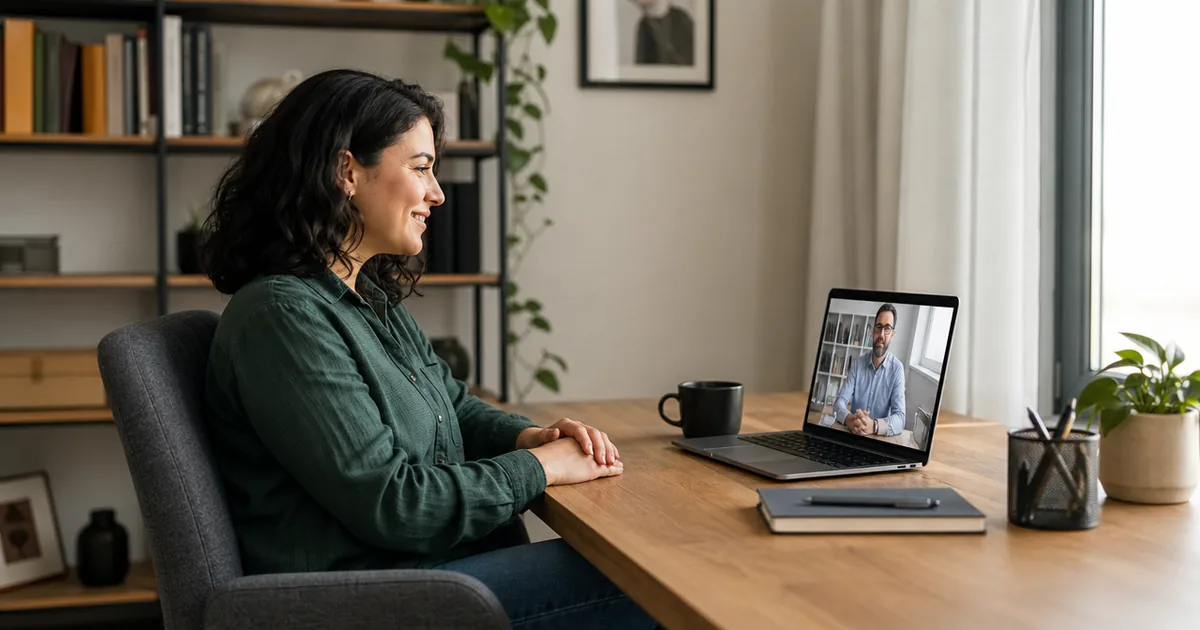
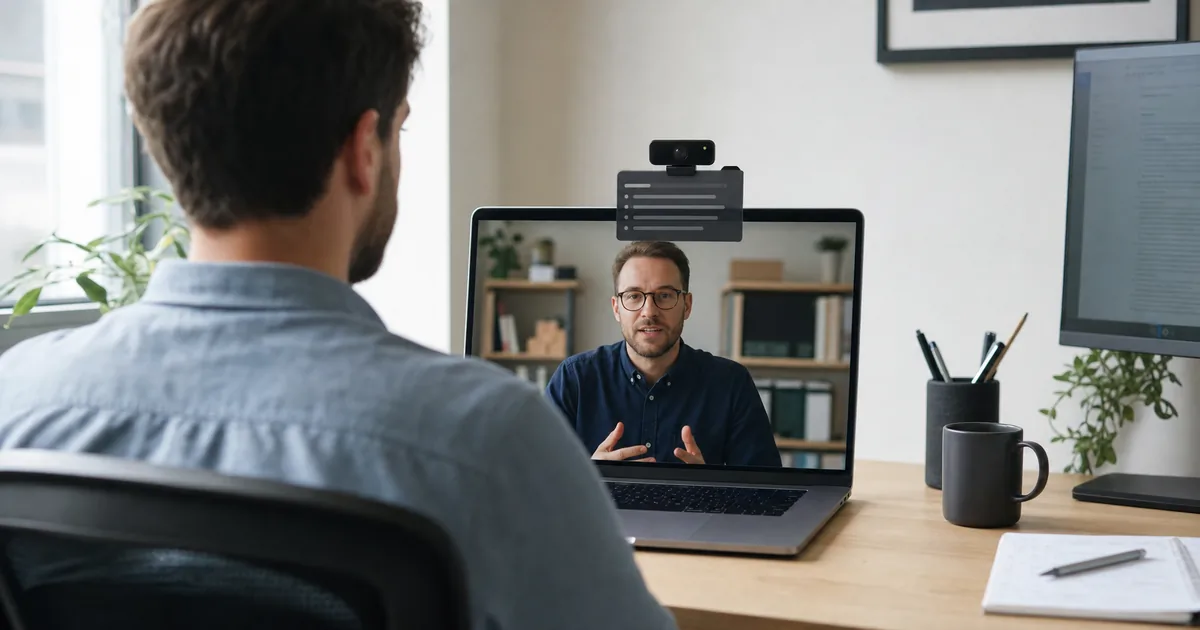
Position your AI interview assistant overlay directly beneath your physical webcam in the top 20% to 25% of your primary screen. This placement anchors the overlay inside your natural gaze cone, ensuring any quick glance looks like direct eye contact with the interviewer.
Optimizing overlay placement eliminates the physical tells that make candidates look distracted—such as horizontal head panning, downward chin drops, and long off-screen staring. Whether you run a single laptop display or a dual-monitor command center, Interview Copilot keeps your guidance positioned right within your natural line of sight so you appear confident and poised.
The 5-Degree Rule: Eye Contact Geometry
When speaking over video, the interviewer perceives eye contact only when your gaze stays within roughly 5 to 8 degrees of the webcam lens. Looking at the bottom edge or distant corners of a 27-inch monitor shifts your gaze by 15 to 25 degrees—a noticeable shift that immediately signals you are reading external notes.
Placing the overlay immediately below the camera lens aligns three vital focal points:
- The physical camera lens: where you direct your gaze when delivering key points.
- The interviewer's video tile: where you observe subtle facial expressions and interruptions.
- The live guidance overlay: where you absorb high-impact speaking anchors in under half a second.
Key Rule: Treat your overlay like an executive teleprompter: glance for half a second to grab the structural anchor, then return your eyes directly to the camera lens to deliver your response.
Never place the overlay directly over the interviewer's face. You need clear visibility of their reactions to gauge when an answer has landed, when to pause, or when to invite follow-up questions.
Best Overlay Placement for Single-Monitor Setups
On a single monitor or laptop screen, the video call, notes, and overlay share the same visual canvas. Use this tested hierarchy:
- Center the meeting window: Position Zoom, Google Meet, or Microsoft Teams in the top center of your display, directly under your webcam.
- Dock the overlay adjacent to the video tile: Place the InterviewCopilot overlay either immediately below the active speaker tile or flush against its right edge.
- Elevate your display: Raise your laptop on a stand or stack of books until the webcam sits at exact eye level. Raising the physical camera does more to preserve natural eye contact than any software adjustment.
- Reserve the bottom third: Keep the lower 30% of your screen clear for essential call controls (mute, camera, leave) and live meeting captions.
- Switch to Glance View: Always favor InterviewCopilot's compact Glance View over Full View during live calls. Glance View condenses guidance into high-yield bullet anchors, occupying minimal screen area and leaving your workspace uncluttered.
Best Overlay Placement for Dual-Monitor Setups
Dual monitors offer abundant workspace, but they introduce a major risk: the horizontal "tennis match" head turn. Glancing at a secondary screen forces your head to pivot away from the interviewer, creating an immediate visual giveaway.
To configure dual monitors correctly:
- Primary Display (with Webcam): Keep the meeting software and your interviewer's video centered here.
- The Inner-Bezel Rule: If you place the overlay on your secondary display, anchor it strictly against the inner bezel—the edge physically touching your primary display. Never place it on the far outside edge.
- Angle Your Monitors: Angle dual displays slightly inward in a subtle V-shape so the distance from your eyes to both screens remains equidistant.
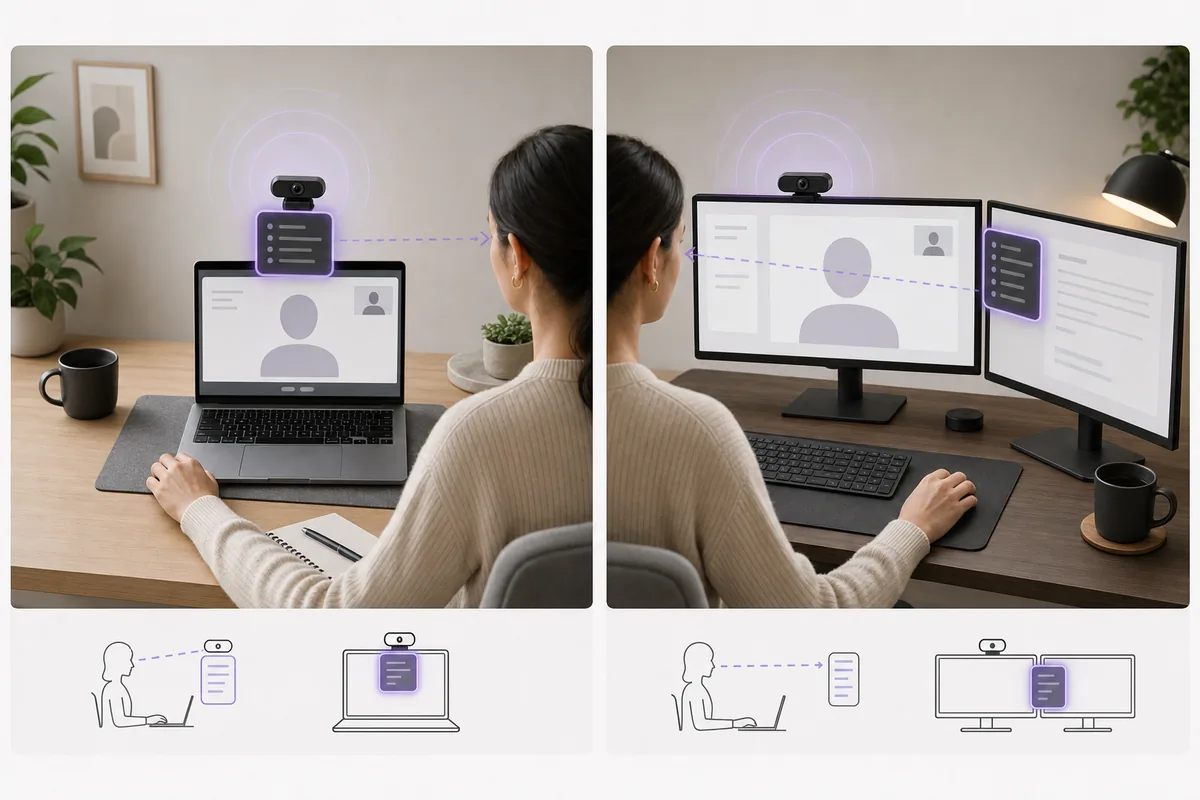
Recommended Dual-Monitor Setup:
- Primary Screen: Webcam mounted at top center; meeting window top-center; InterviewCopilot overlay docked right beneath the lens.
- Secondary Screen: System architecture diagrams, reference documents, or coding editor.
- Rule of Thumb: Your head should never turn more than 5 degrees when scanning between the interviewer and your AI guidance.
Overlay Placement During Live Coding & Technical Rounds
Coding rounds require managing four elements simultaneously: the code editor, terminal output, problem description, and the interviewer.
- Anchor the IDE Central: Keep your editor front and center.
- Dock the Overlay Top-Right or Top-Center: Position InterviewCopilot in the top corner above your editor or alongside the problem prompt. Ensure it never covers compiler error logs, test suite output, or terminal windows.
- Utilize Glance View for Sequence Checks: Use the overlay to verify structural checkpoints—such as clarifying constraints, identifying edge cases (empty collections, integer overflow, cycle detection), and complexity analysis—without cluttering your editor.
- System Design Rounds: When using digital whiteboards like Excalidraw or Miro, place the compact overlay at the top edge of your canvas so you can review architecture patterns, caching strategies, and bottleneck checklists while drawing. For an in-depth strategy, see the system design interview guide.
Screen Sharing and Content Protection
A common concern among candidates is whether meeting software will broadcast the overlay during a live screen share.
InterviewCopilot features built-in operating-system content protection for macOS and Windows. The application window and overlay are automatically excluded from capture pipelines in Zoom, Google Meet, Microsoft Teams, and browser-based sharing. Whether you share an individual application window or your entire desktop monitor, the overlay remains completely invisible to the interviewer and recording bots.
Before an important interview, execute this verification:
- Open a private test call in Zoom, Meet, or Teams.
- Join the call from your smartphone or a second computer.
- Share your entire desktop display.
- Verify on the receiving screen that InterviewCopilot does not appear anywhere in the video feed.
- Move windows across the screen to confirm seamless background rendering.
For an in-depth breakdown of capture pipelines and privacy considerations, read our screen-sharing and visibility guide.
Visual Symptoms That Your Placement Needs Tuning
Watch for these warning signs during your practice runs:
- Head drift: Your chin rotates left or right whenever guidance appears.
- Downward gaze: Your eyelids visibly drop because the overlay sits in the bottom third of your screen.
- Interface blockage: The overlay obscures meeting mute buttons, screen-share triggers, or live captions.
- Cadence shift: You pause unnaturally and begin reciting full sentences verbatim rather than speaking conversational thoughts.
The 5-Minute Pre-Call Placement Checklist
Follow this quick pre-interview calibration routine:
- Align Physical Camera: Set your webcam at eye level. Sit at arm's length (about 20 to 28 inches) from the screen.
- Launch Meeting Client: Open the exact meeting software you will use for the interview.
- Position Overlay: Snap the InterviewCopilot overlay into the top center of your display, right under the camera.
- Switch to Glance View: Ensure the display is set to Glance View for rapid, low-friction scanning.
- Dry Run Two Questions: Speak one behavioral answer and one technical explanation aloud while watching your reflection or local recording to ensure zero perceptible gaze deflection.
- Lock Window Positions: Keep window arrangements fixed so you don't scramble to reposition windows when the call starts.
Review our desktop download and setup section for step-by-step account configuration and client installation.
Frequently Asked Questions
Should the AI interview overlay go at the top or bottom of the screen?
The top 20% to 25% of your screen is vastly superior. Placing the overlay near the top aligns your line of sight directly with the physical webcam and the interviewer's face. Placing it at the bottom creates a pronounced downward chin drop that clearly indicates you are reading off-screen notes.
Is a second monitor better than a single screen for AI interview assistance?
Not necessarily. A single screen with the overlay positioned directly beneath the webcam often produces more natural eye contact. A second monitor only works well if the overlay sits directly against the inner bezel touching your primary display. Placing it on the outer edge causes obvious head panning.
Can the interviewer see the InterviewCopilot overlay during a screen share?
No. InterviewCopilot incorporates native operating-system content protection on macOS and Windows. The overlay is completely excluded from window shares and full-screen monitor shares in Zoom, Google Meet, Microsoft Teams, and Webex.
Does InterviewCopilot appear in the meeting participant list?
No. InterviewCopilot is a standalone native desktop application that captures audio at the system output level. It never joins the meeting as a bot or participant, leaving zero footprint in the call roster.
Bottom Line
Optimal overlay placement keeps your gaze anchored to your webcam and the interviewer's face. Position InterviewCopilot in the upper quarter of your main display directly beneath your camera lens, toggle Glance View for rapid structural prompts, and verify your screen sharing in a private test call. A clean, disciplined layout lets you leverage real-time AI guidance while maintaining authentic, confident executive presence.