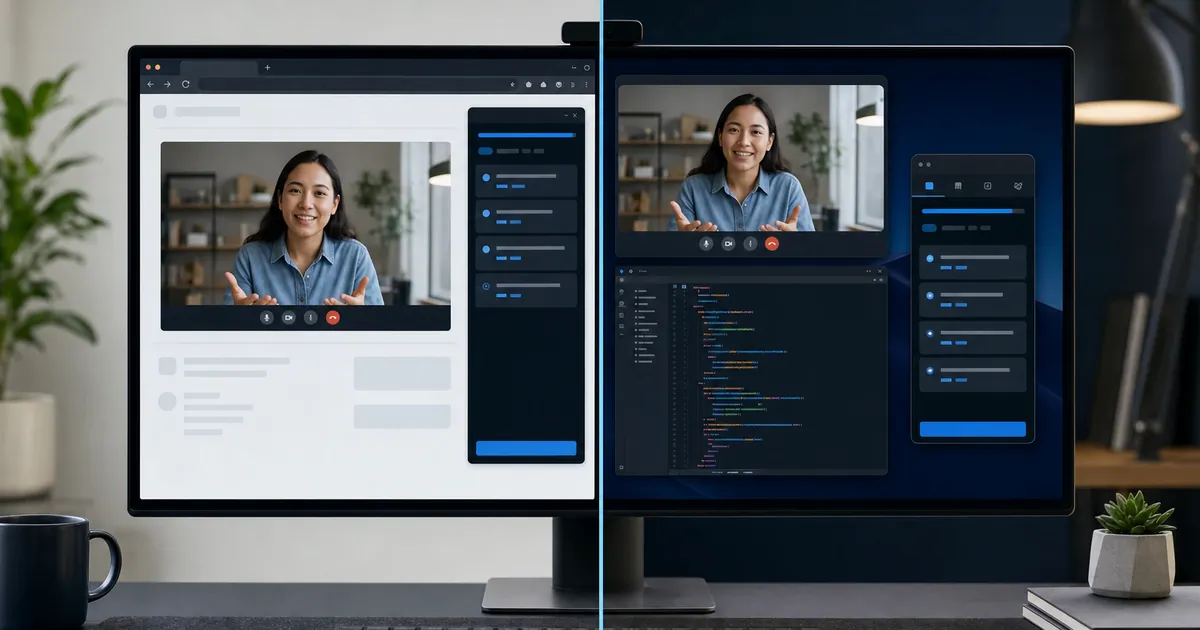
A native desktop copilot provides system-wide audio capture, complete screen-share invisibility, and rock-solid performance across Zoom, Microsoft Teams, Google Meet, and coding IDEs. While AI interview Chrome extensions may seem convenient, they suffer from critical limitations: they break outside the browser, risk DOM exposure during screen shares, and face aggressive browser background throttling.
InterviewCopilot is engineered exclusively as a native macOS and Windows desktop application to deliver the reliability, speed, and privacy required during high-stakes job interviews.
Architectural Comparison: Extension vs Native App
Understanding the underlying architecture explains why serious candidates choose native desktop applications over browser extensions:
| Critical Factor | AI Interview Chrome Extension | InterviewCopilot Desktop App |
|---|---|---|
| Meeting Platform Coverage | Browser-only (Google Meet, web Zoom) | Universal (Native Zoom, Teams, Meet, Webex, Slack) |
| Audio Capture Method | Tab audio capture (fragile, tab-dependent) | Direct OS system audio capture (lossless digital stream) |
| Screen Share Protection | High risk (DOM elements can appear in tab shares) | Complete OS-level window content protection |
| Performance & Latency | Subject to Chrome background tab throttling | Prioritized native process with sub-second streaming |
| Cross-App Workflow | Disappears when switching to IDE or terminal | Persistent always-on-top overlay across all tools |
| Visual Task Analysis | Limited to current browser tab DOM | Instant system-wide screenshot capture with hotkey |
The 4 Critical Flaws of Chrome Extensions in Live Interviews
1. Inability to Support Native Meeting Clients
The majority of corporate interviews take place in dedicated desktop applications: Zoom Desktop, Microsoft Teams, and Webex. A Chrome extension is sandboxed inside the browser process—it has zero visibility or access to system audio from external desktop applications. If your recruiter sends a Zoom client invite or moves an interview to Teams, a Chrome extension becomes entirely useless.
2. Screen-Sharing Exposure and DOM Injection
Chrome extensions render their UI by injecting HTML/CSS elements directly into the Document Object Model (DOM) of your active browser tab. When you share a browser tab during a presentation or portfolio review, anything injected into that tab's DOM is rendered in the video stream.
InterviewCopilot bypasses the DOM entirely. It runs as an independent OS window protected by native display affinity flags (WDA_EXCLUDEFROMCAPTURE on Windows and NSWindowSharingNone on macOS). Even if you share your entire desktop screen, the overlay is filtered out at the graphics compositor layer.
3. Aggressive Browser Throttling and Memory Pressure
Modern Chromium browsers ruthlessly throttle background tabs to conserve CPU and battery. If you click out of Google Meet into your IDE or terminal, Chrome de-prioritizes the background tab, causing audio transcription stutters and answer latency spikes.
A native desktop app maintains continuous, prioritized execution, ensuring answers stream in under one second regardless of which window has active keyboard focus.
4. Fragmented IDE and Whiteboard Support
Technical interviews require fluid movement between coding platforms (LeetCode, HackerRank), local editors (VS Code, IntelliJ), and collaborative whiteboards (Miro, Excalidraw). A browser extension tied to a single tab forces constant context switching.
InterviewCopilot floats discreetly above all applications. You can write code in your local editor, run tests in your terminal, and keep structured guidance in your peripheral gaze without managing browser tabs.
When a Chrome Extension Falls Short: Real Scenarios
- The Sudden Zoom Desktop Switch: The recruiter's calendar link launches Zoom's native app. A browser extension cannot capture the audio.
- The Live Coding Tab Share: You share your Chrome tab to walk through code. An extension's side panel or injected banner risks flickering into the shared view.
- The Multi-Monitor Setup: You move your coding editor to a second display. A tab extension remains trapped inside the browser on your primary screen.
How InterviewCopilot Delivers Desktop Excellence
InterviewCopilot was built from the ground up to solve the real-world friction of live interviews:
- Direct System Audio: Intercepts the clean audio stream directly from the OS audio mixer. Whether the interviewer speaks in Zoom, Teams, or Meet, the copilot hears every question with digital clarity.
- Compact Glance View: An ultra-compact overlay designed to sit directly beneath your physical webcam, ensuring you maintain eye contact while absorbing talking points.
- Universal Shortcut Screenshot Analysis: Press a hotkey to capture any visual problem—whether inside a browser, PDF, Figma file, or local IDE—and receive instantaneous algorithmic analysis.
- Predictable Flat Pricing: One simple plan ($49/month or $149/year) with unlimited interview sessions, avoiding the anxiety of per-minute extension tokens.
For platform-specific setup instructions, explore our dedicated guides for Zoom, Google Meet, and Microsoft Teams.
Frequently Asked Questions
Can I use InterviewCopilot with Google Meet in Chrome?
Yes. Because InterviewCopilot captures system audio at the operating-system level, it effortlessly transcribes Google Meet running in Chrome, Brave, Edge, or Safari, while keeping your guidance in a separate, protected overlay.
Does InterviewCopilot require installing browser extensions?
No. InterviewCopilot is a standalone desktop application for macOS and Windows. It requires zero browser plugins, extensions, or modifications.
What permissions does the desktop app require?
InterviewCopilot requires standard OS permissions for audio output capture and screen recording (for hotkey-triggered screenshot analysis). It does not access private files or track keystrokes.
Bottom Line
While browser extensions offer a superficial shortcut, they introduce dangerous points of failure during live interviews. A native desktop application delivers universal platform compatibility, immune screen-share protection, sub-second streaming speed, and uninterrupted focus. For high-stakes interviews, InterviewCopilot's desktop architecture is the superior, reliable choice.